

Demo look
Brand
Choose a brand kit and theme for the demo.
Playback
Set the browser frame, background, player controls, and autoplay.
Flow
Configure the cover, pop-ups, checklist, and ending of the viewer journey.
Steps and guides
Step
Step information holds the content of the selected step — its title and description, the media
it shows, how the player zooms and transitions into it, and any capture details.
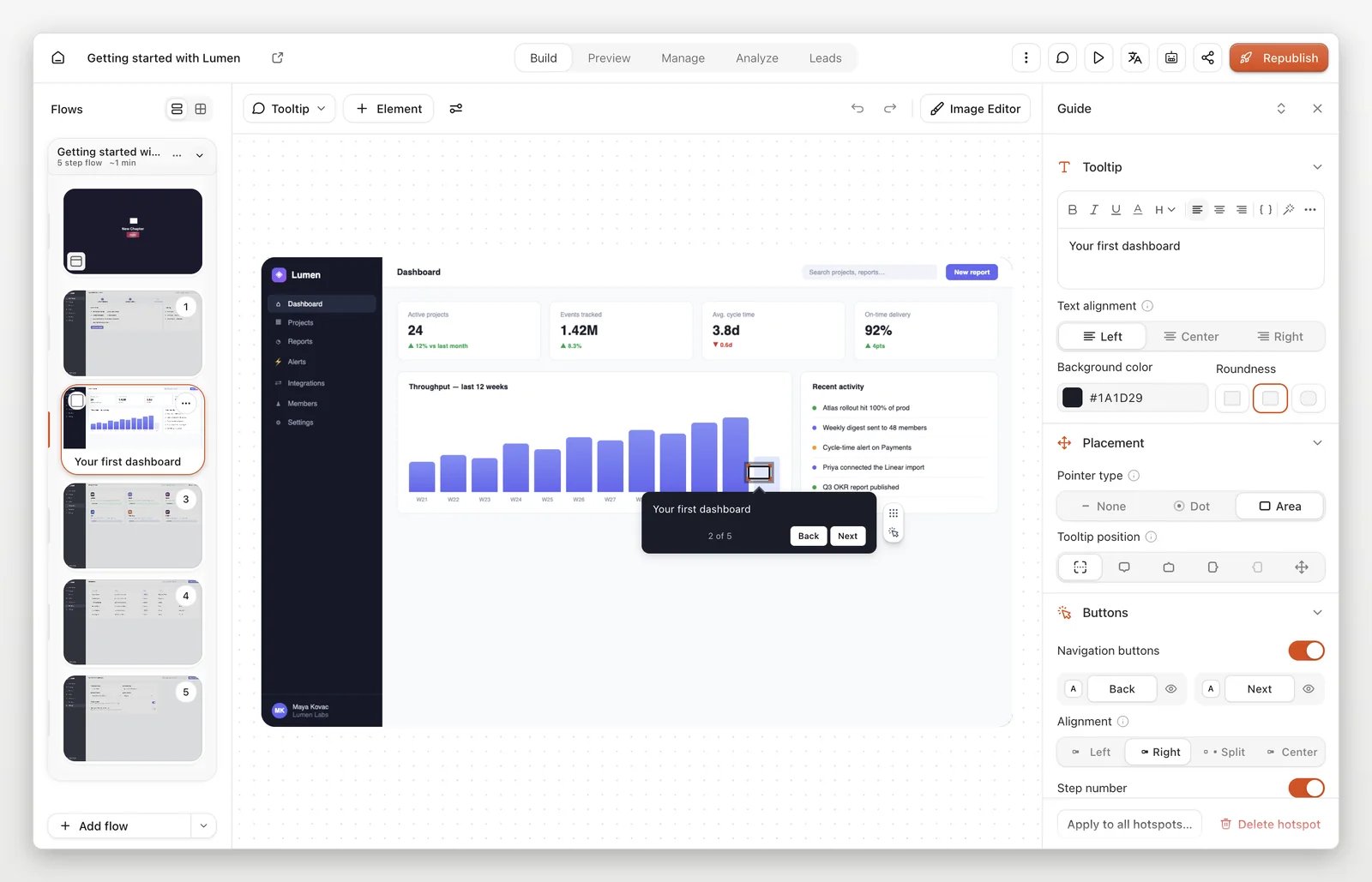
Guide
Adjust the selected guide’s instruction, placement, appearance, and behavior.
Layers
The Layers panel shares the Guide page: the hotspot, popup and spotlight on the selected step.
Voiceover
Add narration to the selected step and review the experience with and without sound.
Video avatar
A video bubble supports the selected step with a presenter clip or a short demo video — a
talking-head bubble or a full presentation video — so a person can walk the viewer through what
they are seeing.
Pan & Zoom
Pan & Zoom moves the viewer’s view into one area of a step’s screen, so a small control or a
detail in a busy page is impossible to miss.
Workspace
Assist
The AI assistant helps you build and polish the demo from the editor — enhancing steps with
generated copy and answering build requests in a chat panel, so you can move faster than editing
every field by hand.
Feedback
Review internal discussion and external viewer feedback.
Demo details
History
Review saved revisions and restore an earlier draft.
Demo
Settings holds the demo’s identity and canvas — its title, share slug, thumbnail, tags, and the
aspect ratio and resolution the demo renders at.
More editor pages
Checklist
A checklist is a persistent overlay listing the actions a viewer should complete across the
whole demo.
HTML editor
Edit text, images, and other elements in a captured HTML state. The original product is not
changed; visual hiding or blur is not a guarantee that underlying data has been removed.
Presenter notes
Presenter notes are private notes attached to a step for whoever presents the demo live.